
Upon opening the website, you’ll be presented with a list of bills. This include both introduced and unintroduced bills from the current legislative session. Use keywords or bill/LC numbers to find specific bills.
The search bar supports:
- Bill number (e.g., SB 100, HB 250)
- Keywords related to the bill’s content or title (e.g., “education”, “environment”)
- Legislator name (find bills sponsored by a specific lawmaker)
The column toggle feature allows you to customize which columns are visible in the bills table. This is especially useful for focusing on the most relevant information to you, without cluttering your screen with unnecessary details.
To use the Column Toggle:
- Look for the Columns toggle button at the top of the table.
- Click on the button to open a menu of available columns. The menu will list all possible columns that can be shown or hidden.
- You will see checkboxes next to each column name that is toggleable. By checking or unchecking the boxes, you can choose which columns are displayed in the table.
- Checked boxes: These columns will appear in the table.
- Unchecked boxes: These columns will be hidden from view.
- Once you’ve customized the columns to your preference, the table will automatically adjust to show the relevant data.
- You can return to the column toggle anytime to adjust the columns if your tracking needs change.
Common Customizations:
- You might hide less important columns (e.g., sponsors, bill description) to focus on the bill’s status and actions.
- Show additional columns if you need more detailed tracking, such as the last committee review or legislative vote results.
- The column choices you make are saved in your browser using local storage or cookies. This means that when you customize the columns—by toggling which columns are visible or hidden—the site remembers those preferences and applies them the next time you visit.
Refine your search results using powerful filters. Above the bill list, you can use the Filter toggle to open the filtering menu. Filters allow you to narrow down the displayed bills based on various criteria. Here’s an overview of each filter and how it can be used:
Session
- Purpose: Filters bills by the legislative session (e.g., current session, past session). The current relevant session is the default.
- How to Use:
- Select the session you’re interested in from a dropdown menu.
- This will narrow the list of bills to those that were introduced or discussed during the selected legislative session.
- Example: You can select “2023” to view only bills introduced in the 2023 legislative session.
Chamber
- Purpose: Filters bills based on the legislative chamber in which the bill was introduced.
- How to Use:
- Select the chamber from the dropdown list or checkboxes.
- Example: If you’re only interested in Senate bills, select the Senate option to view bills introduced in the Senate.
Bill Type
- Purpose: Filters bills based on their type or category.
- Types Include:
- Senate Bills: Bills introduced in the Senate.
- House Bills: Bills introduced in the House of Representatives.
- Joint Resolutions: Bills that propose amendments to the constitution or other resolutions.
- Unintroduced:
- How to Use:
- Select the specific bill type you’re interested in to limit the results to only that type (e.g., if you only want to see Senate Bills, select that option).
- Example: If you’re only interested in House Bills, you can filter out Senate Bills by selecting “House Bills.”
Chapters
- Purpose: Filters bills based on the chapter of law they fall under or amend.
- How to Use:
- Select a specific chapter from a list or dropdown menu.
- Example: If you want to track bills related to a certain chapter, select the that chapter to view all bills that address those particular regulations.
Subject / Keywords
- Purpose: Filters bills based on keywords found in the bill titles, summaries, or descriptions.
- How to Use:
- Enter specific terms or phrases into a search box.
- The site will return bills that contain those terms anywhere in the bill’s summary or title.
- Example: If you’re interested in bills related to education, typing “education” into the search box will show all bills that mention “education” in their title or description.
Sponsor
- Purpose: Filters bills based on the primary sponsor (the legislator who introduced the bill).
- How to Use:
- Use the search field to type in the name of a legislator or use a dropdown list of legislators’ names.
- This is helpful if you are tracking the bills introduced by a specific representative or senator.
- Example: If you’re interested in all bills sponsored by a specific legislator, like Senator Jane Doe, use this filter to view their introduced bills.
Requester
- Purpose: Filters bills based on the individual or entity that requested the bill be introduced.
- How to Use:
- Use a dropdown to select a Requester by name or organization.
- Change radio option to By Request Of to see name of organization or agency.
- Requesters may include legislators, government agencies, or interest groups that initiate or request a bill.
- Example: If a specific government agency, such as the Department of Health, requested a bill, you can select that agency to see all bills requested by them.
Committee
- Purpose: Filters bills based on the committee(s) to which they have been assigned for review.
- How to Use:
- A dropdown or list of committees is available. You can filter bills by selecting a specific committee (e.g., Judiciary Committee, Finance Committee).
- This is helpful if you want to track bills related to specific issues, like tax reform or healthcare.
- Example: If you’re interested in bills related to education, you can filter by the Education Committee.
Party
- Purpose: Filters bills based on the political party of the bill’s sponsor(s).
- How to Use:
- Select a party (e.g., Democratic, Republican, or Independent) from a list of options.
- This helps you view bills sponsored by members of a particular party.
- Example: If you’re tracking bills sponsored by Republican legislators, select the Republican option to view only those bills introduced or supported by members of that party.
Progress
- Purpose: Filters bills based on their current progress in the legislative process.
- How to Use:
- Use the dropdown to select a progress option.
- This allows you to see bills at specific points in the legislative process, for example, only bills that have been signed by the governor or those currently under review in committee.
Progress
- Purpose: Filters bills based on the date range within which a status occurred on a bill.
- How to Use:
- Set the “start date” and “end date” for the period you’re interested in.
- This is particularly useful when you’re only interested in bills introduced or acted upon during a specific time frame.
- Example: You can use this filter to track bills that were introduced within the last 30 days or during the past legislative month.
Other
- Purpose: Filters bills based on whether bills have been amended, have fiscal or legal notes, or are pre-introduction required.
- How to Use:
- This filter allows you to view only bills that have these attachments.
- Example: If you want to focus only on bills that have been modified, apply this filter.
Combining Filters
- Purpose: Combine multiple filters to refine your results even further.
- How to Use:
- Example: You can filter by Bill Type (House Bill), Bill Status (Passed), and Committee (Judiciary) all at the same time to see House bills related to the Judiciary Committee that have passed the legislature.
- Tip: The more filters you apply, the more specific your results will be, so be mindful of not over-filtering and excluding useful results.
To view detailed information about a bill, click on the bill number or title in the table. This will open a page with full details, including bill summaries, history, text, amendments, and committee reports.
Dive into specific bill details, such as:
- Full text of the bill
- Amendments and versions
- Fiscal notes (impact assessments)
- Voting records
- Legislative sponsors and co-sponsors
- Related legislation or subjects
Export bill details, including text, status, amendments, and votes, to share or archive.
- Available formats include PDF and CSV.
- Bills are listed in order of Bill #, then LC #.
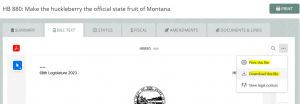
- To print or download the Bill or LC Text, use the ellipsis ( … ) icon on this tab:
Excel
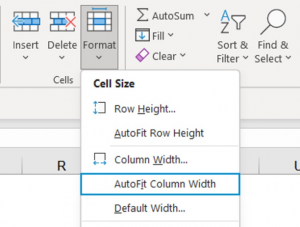
- Select the column(s) you want to change
- Go to Home > Cells > Format
- Under Cell Size, select AutoFit Column Width
Google Sheets
Below are the steps to adjust and autofit column width in Google Sheets:
- Select the column (or columns) that you want to autofit
- Right-click on any of the selected columns.
- Click the Resize Columns option

- In the Resize Column dialog box that opens, select the Fit to Data option & Click OK

Column Resize Shortcut
You can also use the keyboard shortcut Alt + H + O + I to autofit column width in both Google Sheets & Excel.
Convert URL To Link
To turn a URL in Excel or Google Sheets into a clickable link by simply double-clicking on it, you don’t need to do anything else special.
You can subscribe to Bill Alerts to receive notifications about the progress and updates of specific bills. By subscribing, you will get real-time updates on bill statuses, amendments, and actions taken. This feature helps you stay informed about bills that matter most to you. To start receiving alerts, simply visit the Bill Tracker platform and create an account to customize your alert preferences. For more details, check out the full Bill Tracker documentation.
<!–Create an account to subscribe to email alerts on bill actions. You’ll receive updates when:
- A bill moves to a new committee
- Votes are scheduled or taken
- Amendments are introduced
–>